
How to Bulk Download TikTok Videos
How TokGrid Pro batch downloads selected public videos to a folder, with progress, failure handling, and optional original-language SRT sidecars.
On this page
Bulk downloading is a workflow problem as much as a download problem. Selecting the right files, choosing a destination, handling failures, and knowing what to do when a URL expires all matter. TokGrid’s Pro batch download is built to keep those steps visible.
This guide covers the free and Pro boundaries, the Chrome requirement, the folder workflow, the optional subtitle sidecar, and the rights issue that no download tool can solve for you.
Free versus Pro
The download boundary is simple:
- Free: single video download and single subtitle download.
- Pro: batch download, selected-video CSV/JSON export, and product data export.
Single video download lets you choose from the available qualities. Single subtitle download supports original and translated tracks in VTT or SRT when the page exposes them. Batch download adds the multi-file workflow.
Pro is a paid upgrade. Current plan details are available in the extension, not on this page.
What you need
- Chrome 111 or newer.
- The TokGrid extension installed and enabled.
- A supported public TikTok page with a loaded video list.
- An active Pro subscription for batch download.
- A destination folder you choose through the browser permission prompt.
The extension does not request the downloads permission. Single-file downloads use a local Blob and a download link. Batch download uses the File System Access API to write into the folder you select. The browser permission prompt is the authorization step for that folder.
Step 1: Select the videos
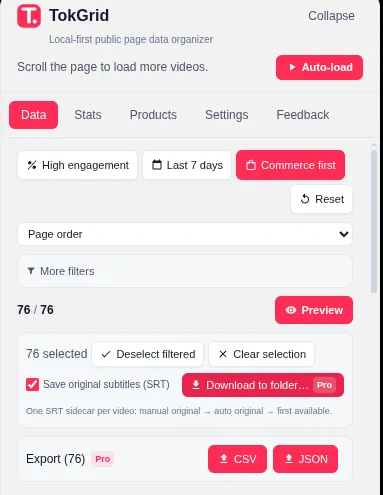
Batch download uses the same selected-video set as Pro CSV/JSON export:
- Select individual rows in the data list.
- Select all current filtered candidates.
- Retain selections across filter changes.
- Use the same selection for export if you need a file.
Selection is not the same as “download everything.” It is the set you explicitly chose. If you change filters, check which selections survived before starting a large batch.
Step 2: Choose the folder
Start batch download. The browser opens a folder picker. Choose an empty or dedicated folder so the files are easy to find. Grant the permission the browser requests.
If you cancel the folder picker, the batch does not start. If a file with the same name already exists, the extension appends the video ID as a suffix (and a number on a repeat attempt) instead of overwriting it.
Step 3: Decide on subtitle sidecars
The batch workflow can save one original-language SRT per video. This is an optional sidecar, not a full subtitle bundle. A video may have no original-language track, in which case the sidecar may be unavailable.
If you need translated tracks, use the single subtitle download workflow for the specific video. Batch download focuses on the original-language sidecar so the queue stays predictable.
Step 4: Monitor the queue
The batch queue shows:
- Overall progress.
- Per-item status.
- A failure list.
- A cancel control.
The queue uses three-way concurrency and streaming writes. Streaming matters for large batches: the extension writes data as it arrives instead of holding whole files in memory, which keeps memory use steadier. When an item fails or is cancelled, the queue discards the writer and removes the partial file where the browser API allows it. Check the failure list and the destination folder after a run.
A failed item does not stop the rest of the queue. Retry the failed items after refreshing the page if a URL has expired.
Quality selection
TokGrid selects the highest available resolution by default and, when resolutions tie, the highest bitrate. The available qualities depend on what the page exposes. Some videos have only one quality, some have several, and some have no playable address at all.
If a video has no playable address, it is not a download candidate. The data list can exclude records that cannot be played. Do not interpret an excluded record as a successful download.
Subtitle availability
Single subtitle download supports VTT and SRT. When available, you can save original and translated tracks. If the primary subtitle URL fails, TokGrid can try a backup source exposed by the page.
Not every video has subtitles. A video can be playable and still have no subtitle track. The extension cannot create subtitles that do not exist, and it does not transcribe audio.
Common failures
- Expired media URL. Refresh the page and retry. Signed URLs can expire.
- No playable source. The video is not downloadable from the available page data.
- Network interruption. Retry the item; the rest of the queue can continue.
- Browser permission denied. Choose the folder again and grant the requested permission.
- Chrome version too old. Batch download needs Chrome 111 or newer.
- Pro not active. Open the subscription flow and confirm the license status.
Content rights and authorization
Availability is not authorization. Downloading a public video does not give you the right to republish it, use it in an ad, or claim it as your own. Follow applicable law, TikTok’s terms, and the content owner’s permissions. TokGrid does not grant legal permission, does not bypass access controls, and does not remove DRM.
If you are downloading for a client or a commercial project, confirm the usage rights separately. Keep a record of the source and the permission you relied on.
What bulk download does not do
TokGrid does not:
- Download every video on TikTok or every video on a profile.
- Guarantee that a video has a playable source.
- Create subtitles or transcribe audio.
- Bypass login, CAPTCHA, rate limits, DRM, or other access controls.
- Merge downloads across pages or sessions.
- Upload the downloaded files to a server.
It downloads the selected, available media to a folder you choose.
A practical batch checklist
- ☐ Confirm the page and sample.
- ☐ Confirm the selection count.
- ☐ Choose a dedicated destination folder.
- ☐ Decide whether you need the original-language SRT sidecar.
- ☐ Start the queue and watch the failure list.
- ☐ Retry failed items if the URL expired.
- ☐ Check the files before using them.
- ☐ Confirm you have the rights to use the content.
- ☐ Keep the source page and capture date with the files.
Where to go next
For the export workflow that shares the same selection, read How to Export TikTok Video Data to CSV. For the performance context behind the selection, read How to Analyze TikTok Video Performance. The TikTok Video and Subtitle Downloads feature page lists the free/Pro boundary and the available formats.
A note on scope
This guide describes TokGrid’s behavior on public TikTok pages. Page data is processed locally; the extension does not promise complete account histories, platform-wide statistics, sales figures, or access to non-public content.