
How to Preview, Sort, and Filter TikTok Videos
Use TokGrid’s Video preview to review the same filtered and sorted sample in card or list view, then select, download, or export the records you need.
On this page
The data list is good for scanning metrics. Sometimes you need to see the same records as cards, compare covers, or make a selection without losing the filter context you just built. That is what the Video preview is for.
It is not a second crawler and it is not a new data set. The preview opens the current filtered and sorted sample in a modal, with the same quick filters, more filters, sort order, selection controls, and Pro actions. This guide explains how the pieces fit together and where the limits are.
What the Video preview is
The preview is a working view of the data list, not a separate page of TikTok results. It is designed for the moment after you have narrowed the sample: you want to look at the records more closely, switch between card and list presentations, and act on a selection.
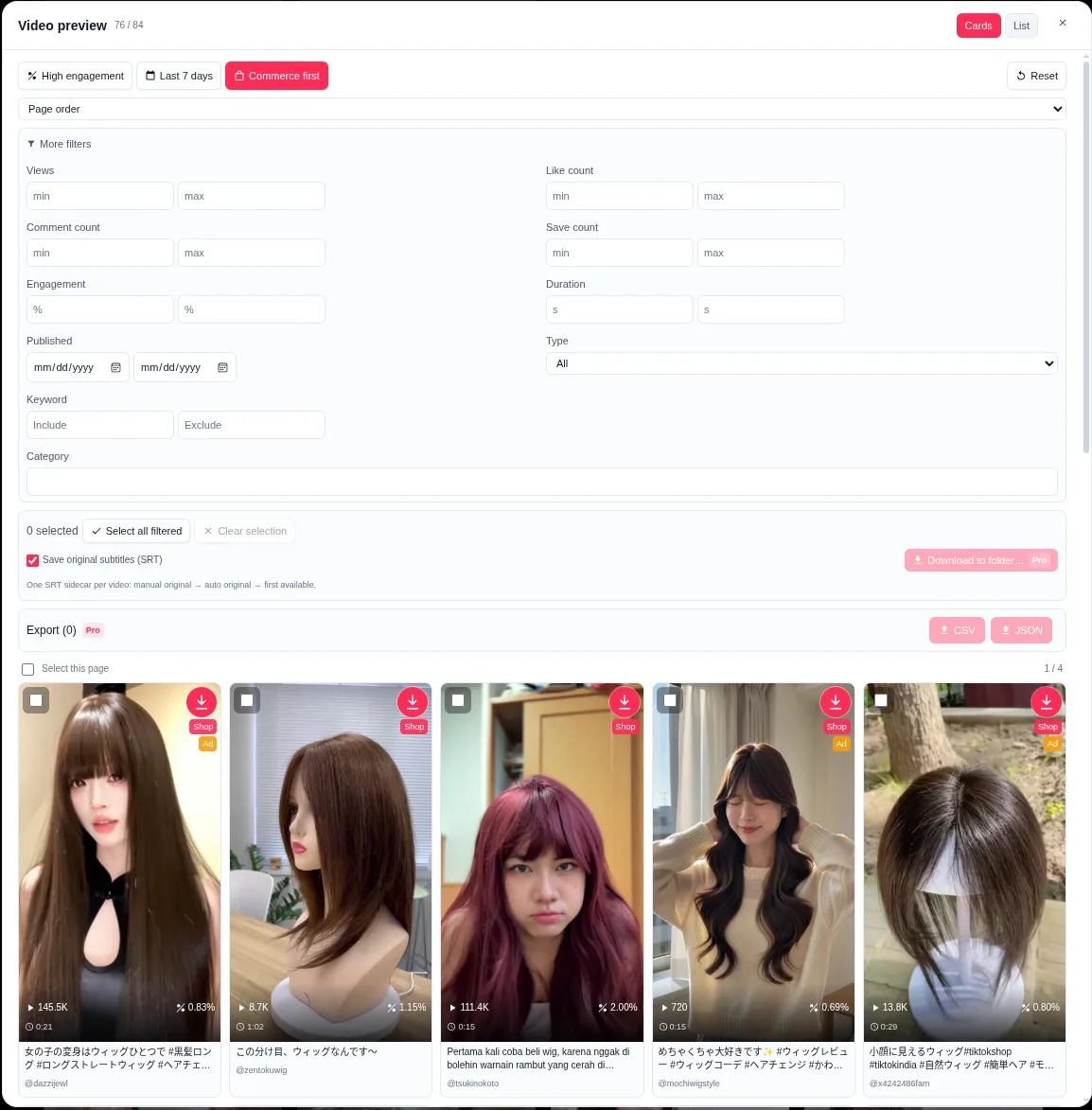
The current build exposes:
- A Cards view and a List view.
- The same quick filters as the main list: High engagement, Last 7 days, and Commerce first.
- The same More filters panel: views, likes, comments, saves, engagement, duration, published date, media type, keyword include/exclude, and category.
- The same sort control, starting with Page order and offering the other list sort options.
- Selection controls, including Select all filtered, Clear selection, and Select this page.
- Pro actions for downloading to a folder and exporting CSV/JSON.
- An option to save original subtitles as SRT during batch download.
The important part is the word same. The preview is a different presentation of the current sample, not a new scan.
Open the preview
Open the Data tab and select Preview. The modal opens over the page with the current list context. If the main list is filtered or sorted, the preview should reflect that state.
A practical habit is to define the sample before opening the preview. Decide the page type, the filters, and the sort order in the main list. Then open the preview to inspect and select. If you open the preview first and start changing conditions without a plan, it is easy to forget which sample you are looking at.
Cards versus List
The Cards view is better for visual scanning. Each card shows the cover, key metrics, commerce/ad badges, and a selection checkbox. The List view is better for reading titles, authors, and metrics in rows, especially when you want to compare similar records.
The toggle changes the presentation only. It does not change:
- the current filter set;
- the sort order;
- the metrics attached to each record;
- the underlying page sample.
If a card looks interesting, you can switch to List to read the same record in a more compact layout, or stay in Cards and continue selecting. The view is yours to choose; the sample stays the same.
Filters and sorting stay in sync
The preview exposes the same filter and sort model as the main data list. That is useful because you do not have to rebuild the sample in a second place.
The quick filters are a fast way to narrow the question:
- High engagement prioritizes stronger interaction efficiency.
- Last 7 days limits the sample to recent published dates.
- Commerce first keeps the sample but prioritizes videos with commerce signals.
More filters give you numeric ranges, date and duration ranges, media type, keyword include/exclude, and product category paths. Sorting changes the order of the records: Page order, views, likes, comments, shares, saves, engagement rate, published time, or duration.
Two cautions:
- A filtered preview is still a sample. Filtering does not add records that the page has not loaded.
- Commerce first is an ordering preference. It does not prove that a video sold products.
If you change the filter or sort in the main list, reopen the preview to work from the updated state. The preview is not a historical snapshot; it reflects the current list context.
Selection, download, and export
The preview is also a selection surface. You can click a card or row to toggle its selection, or use the page-level and filtered-level controls.
- Select all filtered targets the current filtered candidate set.
- Select this page limits the selection to the current preview page.
- Clear selection removes the current selections.
The exact set matters when you move to an action. The preview’s download and export actions use the same selected-video set as the corresponding list actions. That prevents a common mismatch: downloading one group and exporting another.
The preview includes an option to save original subtitles as SRT as part of the batch workflow. That is a sidecar, not a guarantee that every video has subtitles. If a video has no original-language track, the sidecar may be unavailable.
Closing and keyboard behavior
The current preview is intentionally modal:
- Close it with the top-right close button.
- Escape and clicking the background do not close it.
- Keyboard focus stays inside the preview while it is open.
- The background page does not scroll.
This behavior protects an in-progress selection from an accidental click outside the modal. If you are used to closing dialogs with Escape, use the close button here.
A practical preview workflow
- Open a supported public page and let the cards render.
- In the Data tab, apply the filters and sort order that match your question.
- Open Preview.
- Switch between Cards and List to inspect the sample.
- Use the quick filters or More filters if you need a narrower view.
- Select individual records, all filtered candidates, or the current page.
- If you need files, use the Pro download or export actions.
- Close with the top-right button and record the page, date, filters, and selection method.
That last step matters. A preview selection without a sample definition is hard to reproduce, even if the file looks clean.
Limits
The preview describes the current loaded and filtered sample. It does not:
- load videos that the page has not rendered;
- promise a complete account history;
- provide platform-wide statistics;
- change the engagement-rate formula;
- turn a Preview action into a new data source;
- bypass login, CAPTCHA, rate limits, DRM, or other access controls.
It also does not remove the Pro boundary. The preview can show the selection and the actions, but batch download/export still require an active subscription. Availability of a video or subtitle is not the same as permission to use it.
Where to go next
For the full analysis workflow, read How to Analyze TikTok Video Performance. For finding candidates before previewing them, read How to Find High-Performing TikTok Videos. For the export side, read How to Export TikTok Video Data to CSV. The TikTok Video Analytics feature page explains the filters, sorting, and analytics controls.
Preview is most useful when it is the bridge between a defined sample and an action, not a place to start guessing what the data means.
A note on scope
This guide describes TokGrid’s behavior on public TikTok pages. Page data is processed locally; the extension does not promise complete account histories, platform-wide statistics, sales figures, or access to non-public content.